How to Make Wireless Audio More Reliable
Bluetooth drop-outs, delayed sound and uneven volume are often caused by configuration or interference rather than a defective product. A systematic check can solve many common problems.
Keep the source close
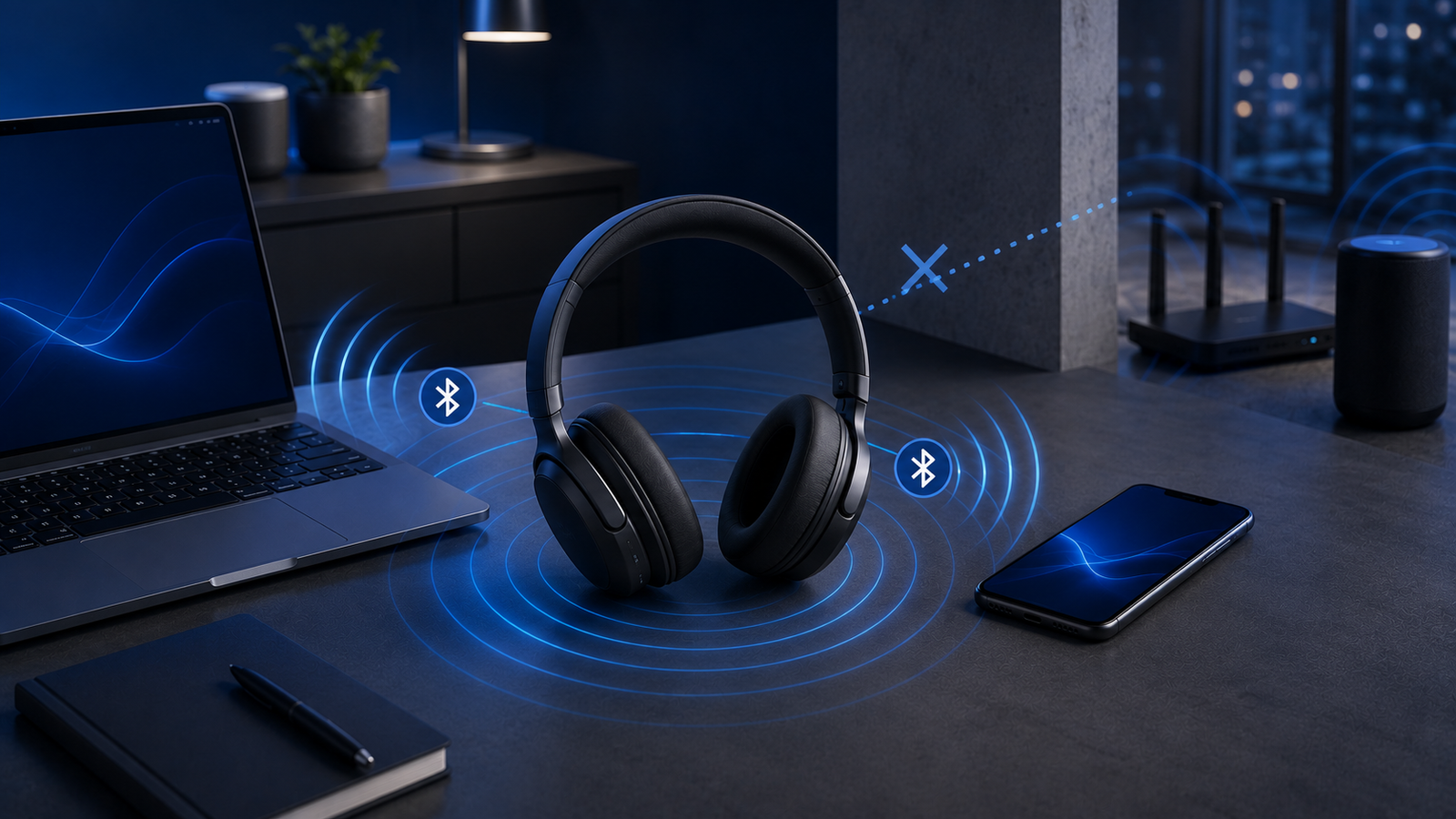
Walls, bodies and crowded wireless environments reduce range. Place the phone or computer on the same side as the main earbud receiver where possible, especially outdoors.
Remove old pairings
Headphones that repeatedly attempt to reconnect to several remembered devices may behave unpredictably. Delete unused pairings and reconnect to the device you use most.
Video delay has two sides
Latency depends on the headphones, Bluetooth codec, source device and application. A gaming or low-latency mode may help, but only when the full connection supports it.
Update both ends
Install firmware updates for the audio device and system updates for the phone or computer. Manufacturers often improve connection stability after release.
Check the microphone mode
On some computers, activating the headset microphone switches audio to a lower-bandwidth call profile. For better playback quality, use a separate microphone or select the stereo output when the headset microphone is not needed.
Reset only after simpler checks
Restart the source device, recharge the headphones and test away from other wireless equipment. A factory reset should be the final step because it removes saved settings.
Reliable wireless audio comes from a clean pairing, current software and realistic expectations about distance and interference.